Layout Composition
Abstract Layout
IUP implements an abstract layout concept, in which the positioning of controls is done relatively instead of absolutely. For such, composition elements are necessary for composing the interface elements. They are boxes and fillings invisible to the user, but that play an important part. When the dialog size changes, these containers expand or retract to adjust the positioning of the controls to the new situation.
The composition elements include vertical boxes (vbox), horizontal boxes (hbox) and filling (fill). There is also a depth box (zbox) in which layers of elements can be created for the same dialog, and the elements in each layer are only visible when that given layer is active. Other containers, such as IupGridBox, IupMultiBox, IupSplit and IupScrollBox, are listed in Containers.
The space around and between the children of a box is set by MARGIN and GAP in pixels, or by CMARGIN and CGAP in character units, see IupVbox and IupHbox.
Layout Guide
Native Sizes (Window and Client)
Because of the dynamic nature of the abstract layout, IUP elements have many implicit types of size. But the native elements have only two types of size: Window and Client. The Window size reflects the bounding rectangle of the element. The Client size reflects the inner size of the window that excludes the decorations and margins. For many elements these two sizes are equal, but for many containers they are quite different. See some examples below.
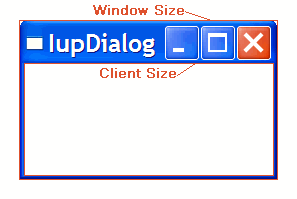
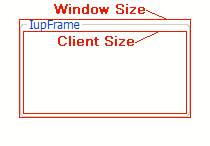
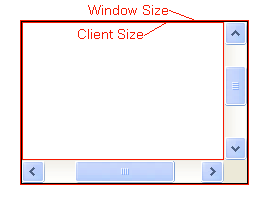
The IUP sizes (User, Natural and Current) described below are all related to the Window size.
The native Client size is used only internally to reposition the elements in the abstract layout, but it is available using the CLIENTSIZE attribute.
IUP Sizes
In Android, every pixel value in IUP (sizes, positions, margins, screen metrics, callback coordinates) is a density-independent pixel (dp), and in macOS and iOS it is a point.
Natural Size
IUP does not require that the application specifies the size of any element. The sizes are automatically calculated so the contents of each element are fully displayed. This size is called Natural size. The Natural size is calculated when the dialog is mapped, after its elements are mapped to the native system, when IupMap is called again for a mapped dialog, and by IupRefresh.
The Natural size of a container is the size that allows all the elements inside the container to be fully displayed. Then the Natural size is calculated from the inner element to the outer element (the dialog). Even if the element is invisible, its size is included in the size of its containers, except when FLOATING is YES or IGNORE, see FLOATING.
In the following example, each button size is large enough to display its text. If the dialog size is increased or reduced by the size handlers in the dialog borders, the buttons do not move or change their sizes.
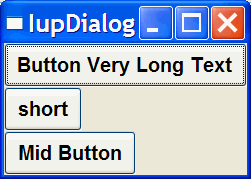
Some controls do not have contents that can provide a Natural size. In this case, they usually have SIZE or RASTERSIZE pre-set.
To obtain the last computed Natural size of the control in pixels, use the read-only attribute NATURALSIZE.
The MINSIZE and MAXSIZE attributes limit both the Natural and the Current size of an element.
User Size
When the application defines the SIZE (in character units) or RASTERSIZE (in pixels) attributes, it changes the User size in IUP. The initial internal value is "0x0". When set to NULL, the User size is internally set to "0x0". If the element is not mapped then the returned value by SIZE or RASTERSIZE is the User size, if the element is mapped then the returned value is the Current size. To obtain the User size after the element is mapped use the USERSIZE attribute.
By default, the layout computation uses the Natural size of the element to compose the layout of the dialog, but if the User size is defined, then it is used instead of the Natural size. In this case, the Natural size is not even computed. But there are two exceptions.
If the element is a container (not including the dialog), the User size will be used instead of the Natural size only if bigger than the Natural size. So for containers, the User size will also act as a minimum value for Natural size.
For the dialog, if the User size is defined then it is used instead of the Natural size, but the Natural size of the dialog is always computed. And if the User size is not defined, the Natural size is used only if bigger than the Current size, so in this case, the dialog will always increase its size to fit all its contents, and will not shrink its Current size. See the SHRINK attribute guide below for an alternative.
When the user is interactively changing the dialog size, the Current size is updated. But the dialog contents will always occupy the Natural size available, being smaller or bigger than the dialog Current size.
When SIZE or RASTERSIZE attributes are set for the dialog (changing the User size) the Current size is also reset to "0x0", forcing an update of its Window size. To only change the User size in pixels, without resetting the Current size, set the USERSIZE attribute.
Current Size
After the Natural size is calculated for all the elements in the dialog, the Current size is set based on the available space in the dialog. So the Current size is set from the outer element (the dialog) to the inner element, in opposite of what it is done for the Natural size.
After all the elements have their Current size updated, the element positions are calculated, and finally, after the element is mapped, the Window size and position are set for the native elements. The Window size is set exactly to the Current size.
After the element is mapped, the value returned by SIZE or RASTERSIZE is the native Window size of the element. Before mapping, the returned value is the User size.
Setting the SIZE attribute of the buttons in the example gives them all the same size.
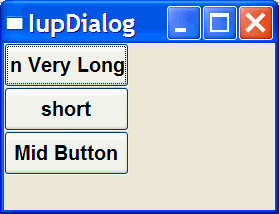
When EXPAND=NO (see below), for elements that are not containers, if the User size is defined, the Natural size is ignored.
To adjust sizes in the dialog, do it after the layout size and positioning are done, i.e., after the dialog is mapped or after IupRefresh is called.
EXPAND
Another way to increase the size of elements is to use the EXPAND attribute. When there is room in the container to expand an element, the container layout will expand the elements that have the EXPAND attribute set to YES, HORIZONTAL or VERTICAL accordingly, even if they have the User size defined. HORIZONTALFREE and VERTICALFREE also expand the element, but are not propagated to its container, see EXPAND.
The default is EXPAND=NO, but for containers is EXPAND=YES.
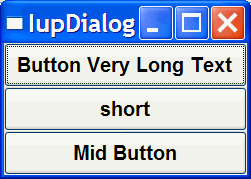
For elements that are NOT containers, when EXPAND is enabled the Natural size and the User size are ignored.
A container expands in a direction only if its EXPAND allows it and at least one of its children expands in that direction; otherwise it is limited to the Natural size. As a consequence (if the User size is not defined in all the elements) the dialog contents can only expand and its minimum size is the Natural size, even if EXPAND is enabled for its elements. The actual dialog size can be smaller, but its contents stop following the resize and are clipped at right and bottom.
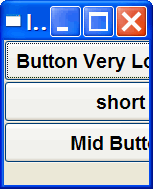
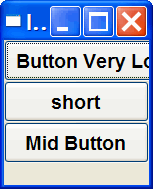
If the expansion is in the same direction of the box, for instance expand="VERTICAL" in the Vbox of the previous example, then the expandable elements will receive equal spaces to expand according to the remaining empty space in the box. Elements in different boxes therefore do not align perfectly when EXPAND is set.
SHRINK
To reduce the size of the dialog and its containers to a size smaller than the Natural size, the SHRINK attribute of the dialog can be used. If set to YES, all the containers of the dialog will be able to reduce its size. Elements may overlap and the layout result can be visually bad if the dialog size is smaller than its Natural size.
When using SHRINK, the dialog initial size usually also needs to be set.
Layout Hierarchy
The layout of the elements of a dialog in IUP has a natural hierarchy because of the way they are composed together.
To create a node, call one of the pre-defined constructors like IupLabel, IupButton, IupCanvas, and so on. To create a branch, call the constructors of containers like IupDialog, IupFrame, IupVBox, and so on. Internally, they all call IupCreate to create branches or nodes. To destroy a node or branch call IupDestroy.
Some of the constructors already append children to its branch; other children are added using IupAppend or IupInsert. To remove from the tree, call IupDetach.
For the element to be visible, IupMap must be called so it can be associated with a native control. IupShow, IupShowXY or IupPopup will automatically call IupMap before showing a dialog. To remove this association, call IupUnmap.
These functions are called in an order that depends on the state of the element. There are 3 states: created, appended and mapped. From created to mapped it is performed one step at a time. Even when the constructor receives the children as a parameter IupAppend is called internally. When an element is detached it is automatically unmapped if necessary. When an element is destroyed it is automatically detached if necessary. So explicitly or implicitly, there is always a call to:
IupCreate  -> IupAppend -> IupMap
IupDestroy <- IupDetach <- IupUnmap
A simpler and faster way to move an element from one position in the hierarchy to another is IupReparent.
The dialog is the root of the hierarchy tree. To retrieve the dialog of any element, call IupGetDialog, but there are other ways to navigate in the hierarchy tree.
To get all the children of a container, call IupGetChild or IupGetNextChild. To get just the next control with the same parent use IupGetBrother. To get the parent of a control call IupGetParent.
Layout Display
The layout size and positioning are automatically updated by IupMap. IupMap also updates the dialog layout even if it is already mapped, so using it or using IupShow, IupShowXY or IupPopup (they all call IupMap) will also update the dialog layout. The layout size and positioning can be manually updated using IupRefresh, even if the dialog is not mapped.
After changing container attributes or element sizes that affect the layout, the elements are NOT immediately repositioned. Call IupRefresh for an element inside the dialog to update the dialog layout.
The Layout update is done in two phases. First the layout is computed, this can be done without the dialog being mapped. Second is the native elements update from the computed values.
The Layout computation is done in 3 steps: Natural size computation, update the Current size and update the position.
- The Natural size computation is done from the inner elements up to the dialog (first for the children then the element). User size (set by RASTERSIZE or SIZE) is used as the Natural size if defined, if not usually the contents of the element are used to calculate the Natural size.
- Then the Current size is computed starting at the dialog down to the inner elements on the layout hierarchy (first the element then the children). Children Current size is computed according to layout distribution and container decoration. At the children if EXPAND is set, then the size specified by the parent is used, else the natural size is used.
- Finally, the position is computed starting at the dialog down to the inner elements on the layout hierarchy, after all sizes are computed.
Element Update
Usually IUP automatically updates everything for the application; for instance, there is no need to force a display update after an attribute is changed. In some situations an update must be forced. The functions that update an element state are:
IupUpdate - update the element look by letting the system schedule a redraw.
IupRedraw - has the same effect of IupUpdate but forces the element to redraw now.
IupRefresh - if the application changes some attribute that affects the natural size, for instance SIZE or RASTERSIZE among others, the actual element size is NOT immediately updated, because it can affect the size and position of other elements in the dialog. IupRefresh forces an update in the layout of the whole dialog, and an element whose size changed has its appearance automatically updated.
IupFlush - process all events that are waiting to be processed. Setting an attribute generates a system event that waits until it is processed by the event loop. Calling IupFlush processes that event immediately, but it also processes every other pending event, so other callbacks can be triggered during the IupFlush call.